


Requirements: Elementor Pro
Creating an off-canvas carousel slider looks a lot more interesting than a normal grid or slider. That’s why it’s a great way to spice up your website.
This is because off canvas creates the illusion that there is more going on than what’s the eye can see. In Elementor you can create a slider that goes offset on both sides with the new carousel and loop carousel widget but it is not possible to only offset it on 1 side, because the offset slider in Elementor has some limitations. So in this article I will show you how.
The basic carousel slider
Whether you use the normal carousel of the loop carousel the basic carousel looks like this. It has points at the bottom and transparent left and right buttons for navigation.

Upgrading the navigation buttons
By default the left and right arrows are hardly visible because they are overlapping the content and a bit transparent. So an easy way to make your design more interesting is to add a background color to these buttons, make them rounded (border or solid) and place them close to each other. It’s easy to do in Elementor in the widget and it makes it look a lot better already.

Combine it by turning off the dots at the bottom for an even cleaner look.
Off canvas on one side
Elementor has this feature called “Offset sides”, which shows a little bit of the next carousel slide. So you would think that this would do the job.

But the problem with this approach is that it just crops inside of the carousel widget. It doesn’t overflow the slides onto the sides of the screen.
So then you have to mess with the padding of your background container in order to make sure the widget goes all the way to the side of the screen. I tried the following:
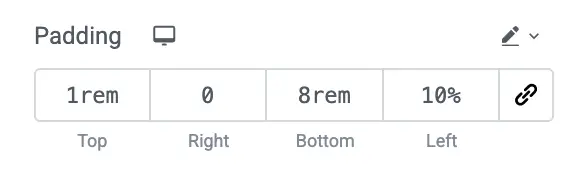
This works, but it forces you to give up your px based boxed container. So if your website is using % from ultra wide to mobile, then this approach works and you don’t need any custom code. But many websites want to stick to their px based boxed container, so then this approach doesn’t work.
Another downside of using this method is that the carousel inner containers also scale up according to the size of the screen. So they are not keeping their original aspect ratio, which forces you to give up a little bit of control on how your images are displayed.
So an easier and better solution is to just drop this little line of code in the custom css of your carousel widget:
Code for off canvas on one side
selector .swiper {
overflow: visible;
}
selector .swiper {
clip-path: inset(0 -200% 0 0);
}
And voila! There it is:
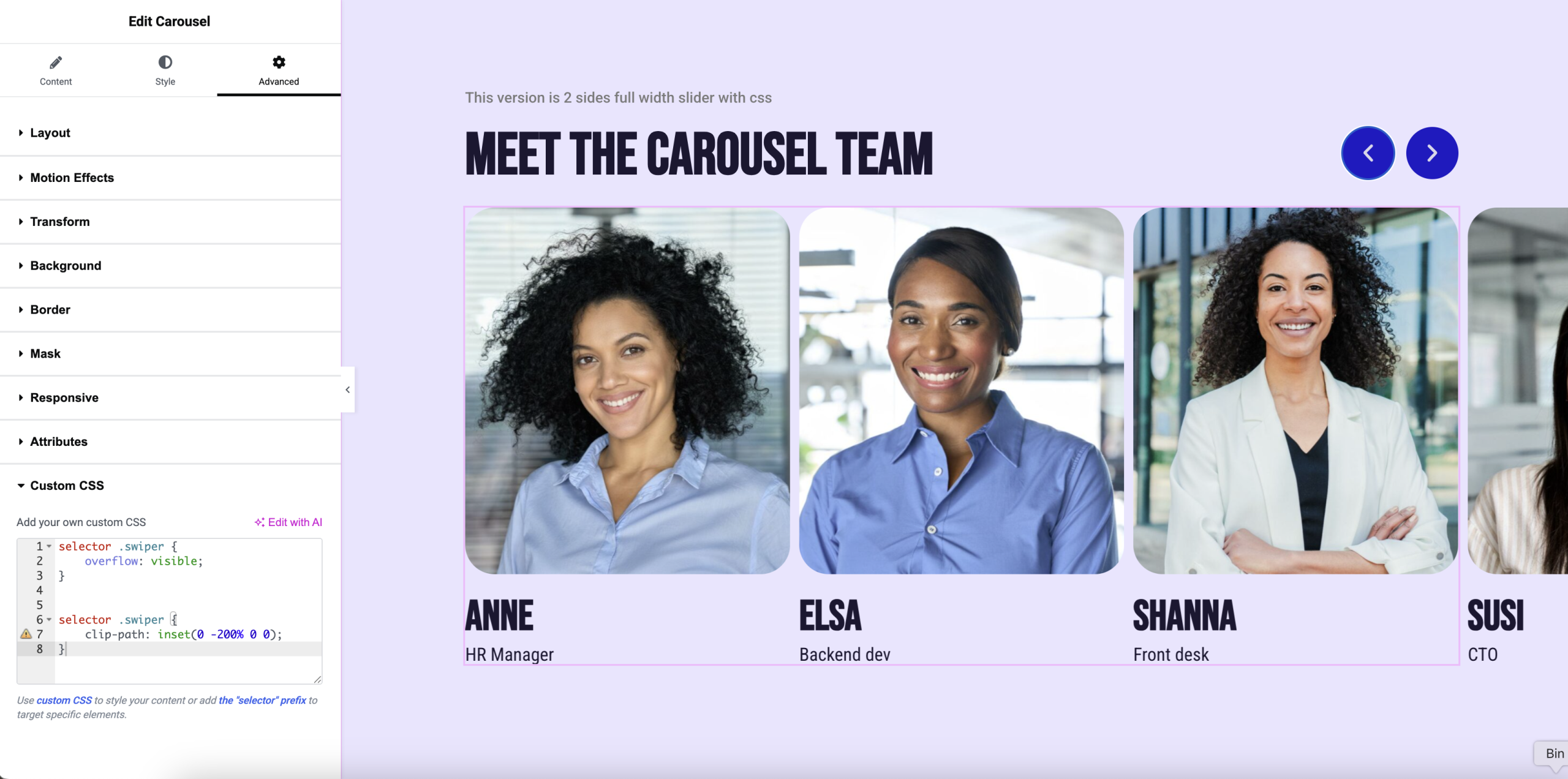
This little code tells Elementor that you want to show everything that is hidden. Because in the background Elementor is actually already cropping your carousel. So with this piece of code we are basically undoing that, making the hidden slides visible. But it still crops out the left part with a clip-path to make sure only the slides on the right side are visible.
It doesn’t matter where you start
What’s great about this code is that it also works when you have a situation like this, where you have some information in a container on the left and still want to display a carousel on the right.

Cool right?
Off canvas on both sides
If you want off canvas on both sides then you have 2 options. Option 1 (which I do not recommend, but it’s easy) is to put that “Offset sides” feature to “Both” and then put the carousel in a separate background (full width) container. This works without using any code, but it does mess up the aspect ratio. So I think it’s better and easier if you just update the code you already have to keep your container aspect ratios in tact. If you add this code:
selector .swiper {
overflow: visible;
}

selector .swiper {
clip-path: inset(0 -200% 0 -200%);
}
Then it works!
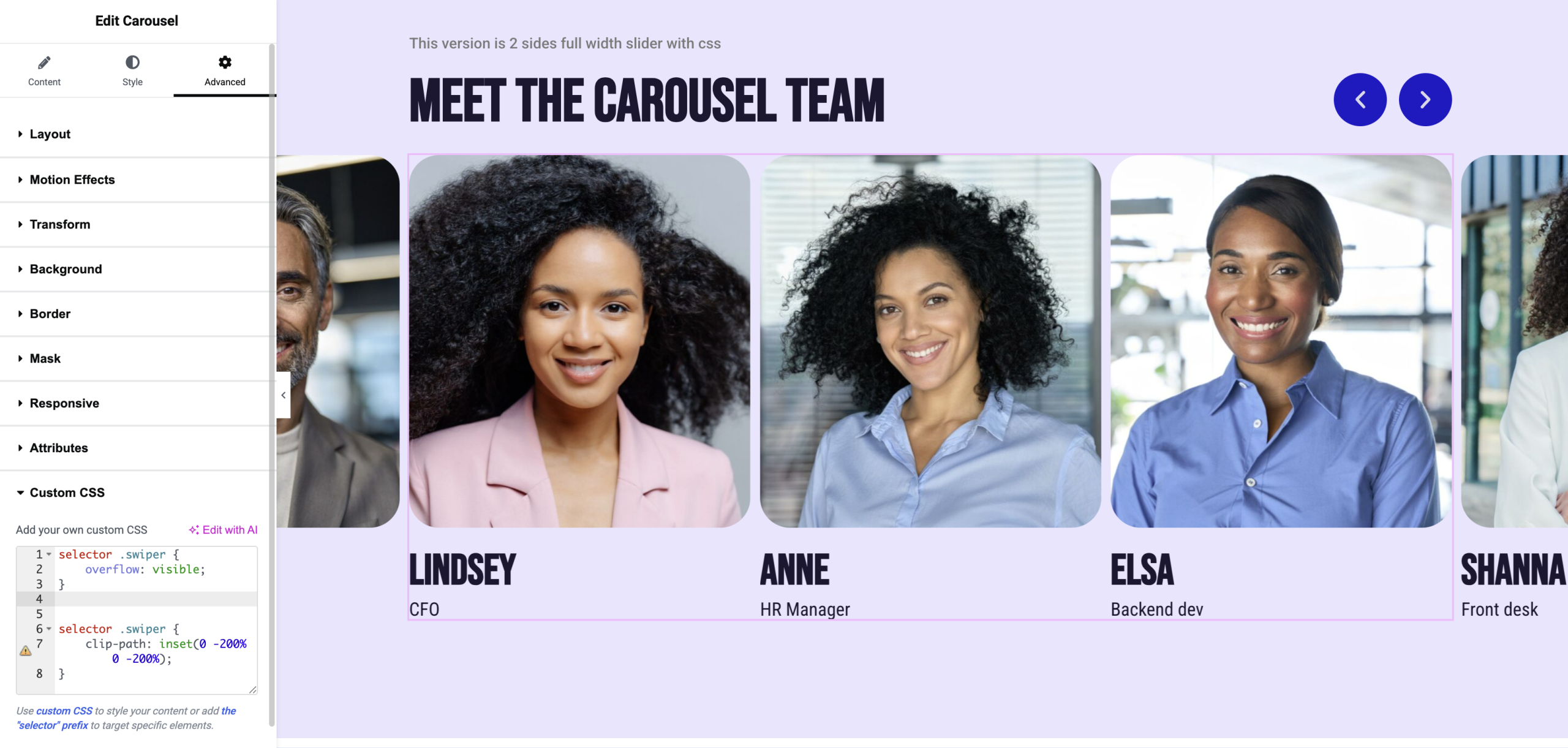
This code also tells Elementor to first show the hidden slides and then apply an inverted crop (which turns it into showing mode).
Custom designs are awesome
I personally always love these custom tricks because it makes your website stand out from the competition.
Do you want to learn more about Elementor?
If you are like me, learning Elementor wasn’t exactly easy. Site settings, typography, containers, responsiveness… it becomes overwhelming fast. Elementor makes it look easy in their marketing, but the reality? It’s not really a beginner tool anymore.
That’s why I share so tips and tricks on my YouTube channel and this blog, but trying to piece all the stuff together is kind of hard. That’s why some people asked me to create a more in depth step-by-step online video course. So that’s what I did. My Elementor course shows you what is possible and how you can build in the most efficient way, so that you don’t have to waste a lot of time clicking on every single option. This course is for anyone that want a complete system from start to finish.
Interested? Leave your email and I will send you more info about the course, and also a discount code as a thank you.